#navbar-iframe { display: hidden } Technoholic: July 2010

Thursday, July 8, 2010

Anonymous Surfing to blocked sites


Do you want to access sites which are blocked?
then just follow thes steps and enjoy surfing..
Here are steps:
1). Open Google.com.
2). Type transparent free Proxy address free.
3). In search result, Click on any of the link for free fresh transparent proxy list.
4). Now here look for a proxy address with port 8080.
5). Now go to tools menu of your browser.
6). Go to Internet options and click on use a proxy server for LAN options.
7). Type number that you found in the website with 8080 port.
8). Click Ok.
9). Now open any website. Enjoy Surfing!!!

NOTE: this trick does'nt work on highly secured networks.

Lock Your Pendrive and encrypt it with Password

Want to carry some confidential data in your pendrive but such that no one can acess it
Lock your pendrive and encrypt it safely with a password so that on one can acess your private folder and can easily be carried in your pendrive.


to download usb secure
and protect your data from unauthorized acesses

Wednesday, July 7, 2010

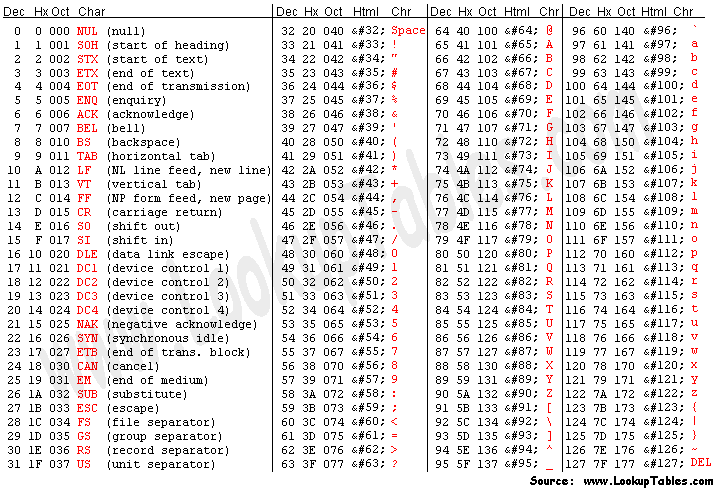
HOW TO PRINT SPECIAL CHARACTERS?????


Normally we are not able to print special characters through Keyboard. But we can print them by using combination of various keys.Here role of NUMERIC KEYS come into play. List of various special characters is show below. Print by pressing Alt and then three codes using NUMERIC KEYS.

PLAY TETRIS GAME IN µTORRENT


1.Open µTottent .

 2.Now click on HELP button and then on ABOUT  µTORRENT.

 3.A Version window will open. Now press Ctrl+T.

 4.Now start playing TETRIS game and enjoy..........


Thursday, July 1, 2010

REPAIR CORRUPT PENDRIVE

Have you suddenly encountered with the problem that when you plug in your USB drive, the Removable media shows up but when you try to open it, it returns with the message “Please insert a disk in to drive H:”.

If yes then you have been on right tutorial page.

By applying this simple method you’ll have 80 % chance to get back your USB drive hardware.
This works only in the above error condition. If the windows doesn’t detect your USB drive, then there is probably flaw in the USB media.
Please keep in mind that, you’ll have to lose your data when following this tutorial.
Plug in your USB drive.
Go to Start>My Computer, right click on My Computer icon and click on Manage menu.

Computer Management window will pop up. Click on Disk management under Storage tree menu.

Now at the right side of the window right click on your removable media. , right click on your removable media and choose Change Drive Letter and Paths.
Now in new window choose any drive later that is not taken by any media (M:, N: , :K: etc).
Click on ok button and close the management window. Try opening your pendirve. There may be the chance to have your pendrive recovered if this method worked.
If the problem still prevails then follow the above tutorial but instead of choosing  Change drive letter and paths, choose Fomrat and give a quick format to it.
 
Now you’ll have finally lost your data but the pendrive is safe in your hands.
Hope this tutorial was working. If it didn’t please do comment me. I’ll find other solutions as well.